
Requesting a code inside the 1xBet app should feel routine, yet the message sometimes never lands. The same step in a mobile browser can be worse, since the page may refresh and wipe your entry. The app keeps the countdown and your number on screen, which gives you a clear place to start. Most delays come from ordinary settings on your handset rather than a fault in the 1xBet system itself.
why the code never shows up in the app
When you tap the code button, the 1xBet app shows a short countdown and waits for an SMS. If nothing arrives, the first guess is usually your network, not the platform. A weak signal or a full inbox queue can hold a message back for minutes.
Another common cause sits in your phone settings, where block list entries may interfere with messages. Restrictive data saver settings can stop delivery, and email filters work the same way. A strict spam filter may quietly file the verification message away from view.
- Check that airplane mode is off and your signal shows bars.
- Open the default messaging app and confirm storage is not full.
- Look in the blocked or spam folder of your email application.
- Turn off battery saver for the 1xBet app in system settings.
- Make sure your device clock and time zone match your location.
- Switch from mobile data to Wi-Fi and request the code again.
checking your phone and network first
Start with the device in your hand, opening the notification shade to confirm no do-not-disturb mode is active. Then move to Settings, then Apps, and find 1xBet to verify notifications are allowed and data permission is not restricted.
If the handset looks correct, turn to the network, since some carriers delay short-code messages when roaming. Send yourself a plain text from another number and see how long it takes to land on your screen.
That small test separates a carrier problem from an app problem. If your own message arrives within seconds, you can request the code again. If it does not, the delay sits with the mobile network.
When the message still fails, review how you guard the handset itself, keeping the operating system current. The NCSC mobile device guidance covers these basics in plain language.
resending the code from the 1xBet menu
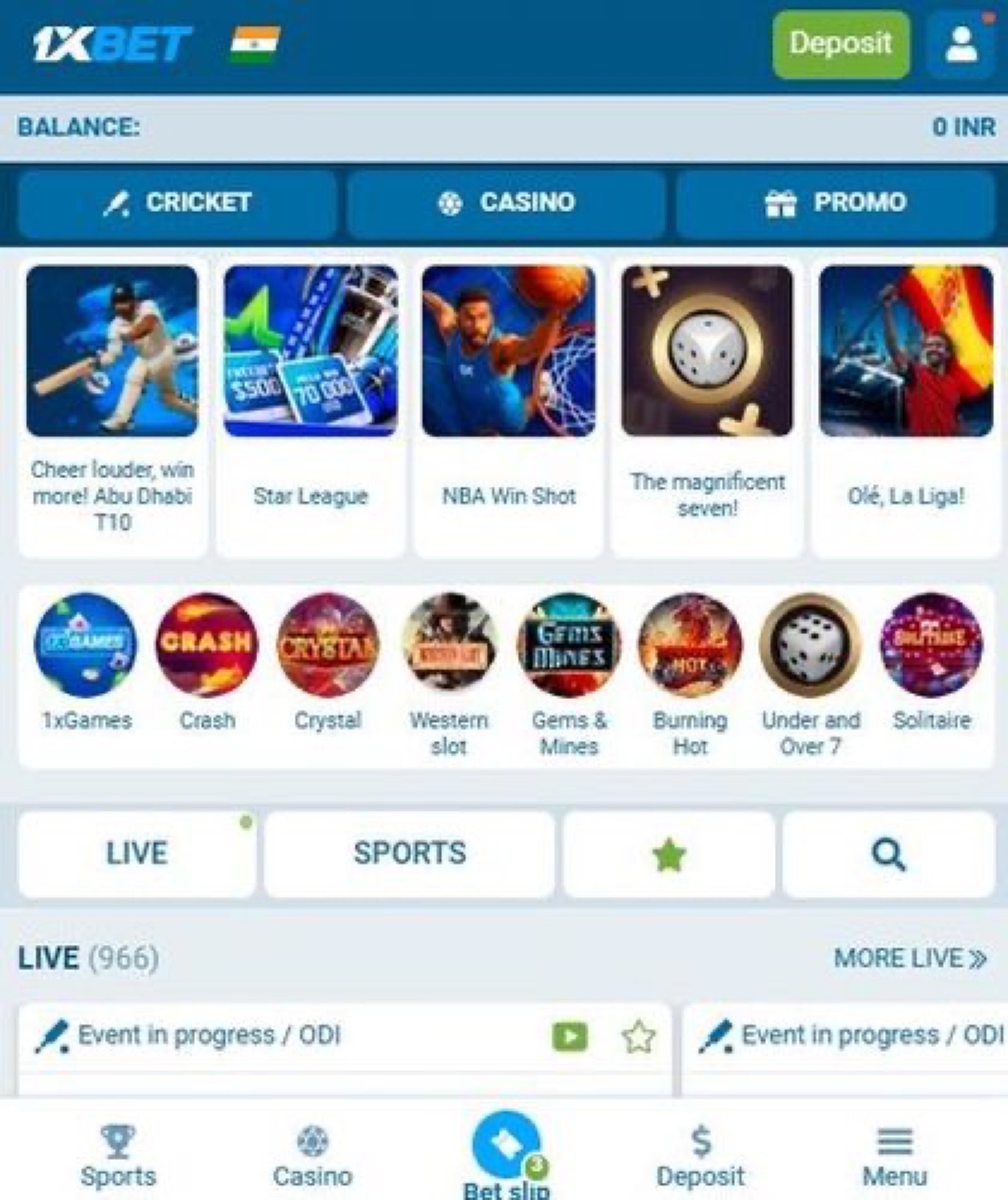
Once the device and network are cleared, return to the 1xBet app. Look at the verification screen where the resend option appears beside the expired countdown. Tap it and wait a full minute before judging the result.
If the second attempt also stalls, switch the delivery channel to the email option under the phone field. Copy the address you registered, then request the code to that inbox instead.
Before you request it again, clear any leftover entries in the input box by deleting old digits. A single wrong digit sends the message into the void, and you will wait for a code never meant for you.
- Wait for the on-screen countdown to reach zero on the page.
- Tap the resend button and keep the app open on that screen.
- If nothing arrives, request the code by email using your address.
- Check the spam and promotions folders of that inbox after a minute.
- Still nothing? Re-enter your number carefully and send one final request.
- Contact 1xBet support from the app menu if the final attempt fails.
When codes keep failing, contact 1xBet support from the app
Open the 1xBet app menu and tap the headset icon, which opens the live chat window where an agent can trigger a fresh code on their side. They usually ask for your account ID first, so keep it handy.
The chat form has a text box where you type your registered phone number or email. Say clearly that no code arrived on the last three attempts, and a short screenshot of the empty inbox helps them check faster.
While you wait, avoid spamming the resend button, since each press queues another message in their system. Too many requests in a row can trigger a temporary hold.
Clear the app data and re-enter the verification screen
Go to Android Settings, then Apps, then See all apps, finding 1xBet in the list. Press Clear storage and confirm the dialog, after which the app restarts fresh next time. Sign-in details will need to be typed again before you can proceed.
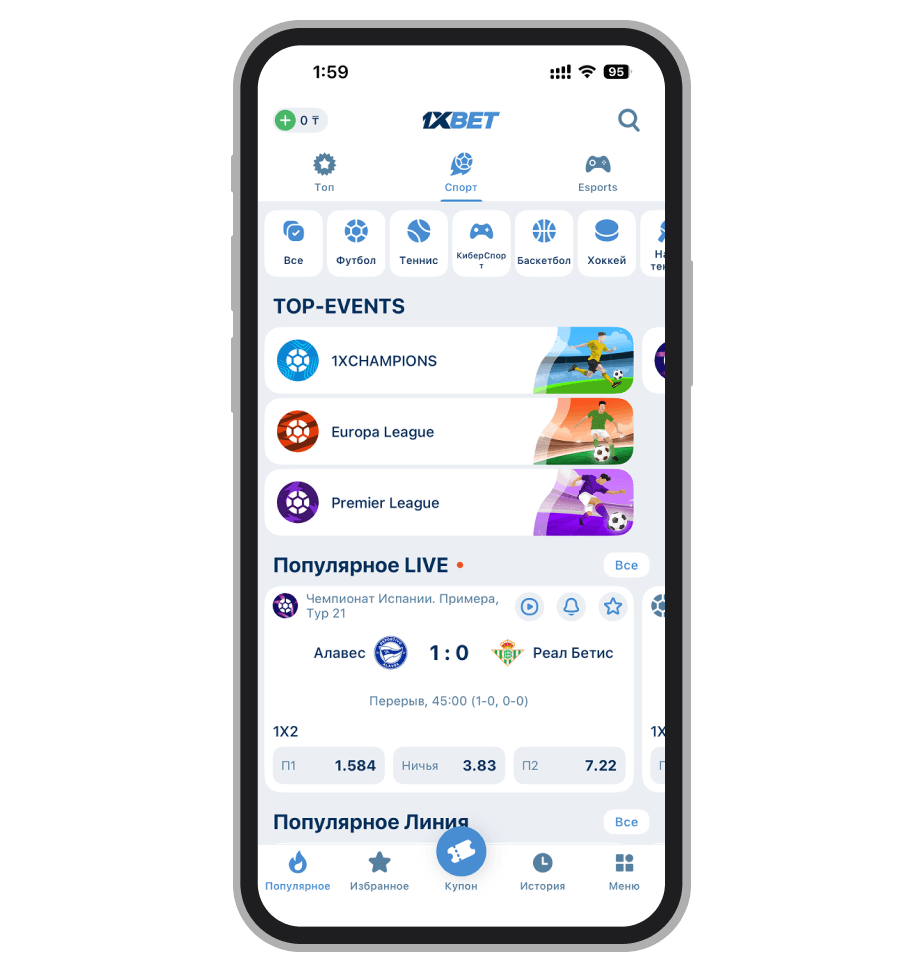
After clearing, go straight to the verification screen and request the code once, since the timer resets. If you use a phone number, check the notification shade for the message; on email codes, refresh the inbox by pulling down.
- Settings, Apps, See all apps, 1xBet, Storage and cache, Clear storage.
- Sign in again, then open the verification screen from the profile page.
- Request one code and wait sixty seconds before pressing resend.
- Check the notification shade, then the email inbox, then spam.
Carrier filters and spam folders hide the 1xBet message
Your mobile carrier sometimes routes short code messages into a filtering service where the SMS exists but never reaches the handset. Open the Messages app search bar and type 1xBet there; if nothing appears, the filter likely caught it. Call your carrier and ask them to whitelist sender ID messages.
Email codes follow a similar path, so open the mail app, tap the menu, and open Spam or Promotions to search for 1xBet across all folders. If the code shows up there, mark it as safe, and future verification emails will land in the main inbox instead.
Install the current build so the verification screen works correctly
An old 1xBet build sometimes fails to listen for the code callback, so get the fresh package from the 1xbet apk for smartphones page. Then open the Files app and tap the download entry, and Android shows the package installer prompt. On a stable Wi-Fi network the whole step takes a minute.
Once installed, launch the app from the home screen and sign in again, since the verification dialog appears with a clean sixty second timer. Request the code and read it straight off the screen, as a few seconds is all it needs. If it still does not, clear the app data as described above.
- Download entry in Files, package installer prompt, Install button, progress bar.
- Notification shade shows the download completing in about a minute on Wi-Fi.
- Reopen 1xBet, sign in, then request a fresh verification code.
Numbers worth knowing while you wait for the code
| Action | Typical wait | What you see |
|---|---|---|
| First SMS request | 10-30 seconds | Timer counts down from 60 |
| Resend button activation | 60 seconds | Button turns grey then active |
| Email delivery | 1-3 minutes | Mail app badge appears |
| Live chat reply | 2-5 minutes | Agent message in the window |
The resend timer in the 1xBet app is always sixty seconds, and pressing early sends nothing. Wait for the full minute, then tap once. If nothing arrives after three clean attempts, move to support chat.
Pushing the button faster than the timer only delays the fix further.
Does the code expire before I type it?
Yes, the 1xBet verification code is short lived and stays valid for a few minutes only, so type it as soon as it lands.
Can I switch to email verification?
Open profile settings in the 1xBet app, picking the email option under the verification block so the new code arrives in your inbox instead.
What if nothing works at all?
Reset the app data and restart the phone once. Then send your account ID in the live chat where the agent can force a code on their side.